
Contents
Updates that Health Portal Solutions Automatically Implements for You.
Updates That You Must Implement
Add Cookie Consent to Your Portal
Update Your Portal to WCAG 2.2 AA Standards.
Audit Your Portal’s Administrator Logins.
Remove Outdated Portal Content and Documents.
Health Portal Solutions (HPS) regularly maintains and updates your portal so that you can comply with new legal standards, protect your data, and engage each user in meaningful ways.
While HPS does the groundwork of this maintenance, our clients are responsible for making certain updates and incorporating them into business processes that HPS is not connected to.
Outlined below is an overview of portal maintenance enhancements available to you now, updates that require your involvement, and how you can move forward with each one.
Updates that Health Portal Solutions Automatically Implements for You
Telerik Updates
Telerik is a code library that we use to speed up development of our portals. It has out-of-the-box components that we use and customize. Telerik often releases a new version of their code libraries, and once or twice a year, we will update to the latest standard version. When we do these updates, there is no disruption for end users.
Server Updates
If HPS hosts your web portal on our server, we manage the server updates to keep it secure; no action is required from you. If you handle your own updates, you’ll need a Windows Administrator to keep an eye on server updates and apply them during low traffic times of your portal.
Programming Languages
Programming languages evolve, just like human languages. Our developers keep up to date with the latest standard syntax and use those when programming your portals. In the coming months, HPS will be significantly updating our background framework to keep up with Microsoft’s latest requirements.
Backups for Your Portal
If HPS hosts your portal, we regularly back up your portal’s files and database.
Updates That You Must Implement
Below are ways HPS clients can keep their portal humming along without any technical or legal disruptions, and no added costs from Health Portal Solutions.
Update Your Privacy Policy
About This Update
Most of our clients have opted to have a Privacy Policy page activated on their portal. This page should explain what you do with user data, how long you keep it, if you have cookies, and if you allow minors on the portal.
While you are welcome to start off with HPS’ starter Privacy Policy as your safety net, some clients desiring stronger legal protection hire an IT lawyer to draft a Privacy Policy tailored exactly to their business needs.
How to Do It
To update the Privacy Policy page for your portal, submit a ticket in the HPS Ticketing System and provide us the language you’d like to use.
How Often to Do It
Once you’ve updated your Privacy Policy, you don’t need to update it again unless you add more cookies into your portal later.
Add Cookie Consent to Your Portal
About This Update
An important component of Privacy Policies is informing users of cookies. You might remember a time you searched the web for dog food, and then every website for the next 3 weeks had dog food ads. That is likely because a cookie was placed on your device. There are two types of cookies:
- Essential cookies: These are required for functionality of a portal. For example, if your user logs onto your portal and sends a Mailbox message, a cookie would be required to track their login session.
- Non-essential cookies: These enhance your use of your portal but are not essential for your users. For example, let’s say you’ve added Google Analytics to your portal. An end user does not need this cookie to visit your portal and perform their task, so Google Analytics would be considered an optional cookie.
The use of cookies becomes egregious when a cookie is placed on a user’s device without the user’s consent and could have legal implications for organizations who use cookies without consent.
Within the European Union and California, the GDPR and CalOPPA laws require a user to give consent before any cookie is placed on a user’s device. Unless you are actively blocking these regions, HPS recommends you add a Cookie Consent pop-up to steer clear of legal issues.
How to Check if Your Portal Uses Non-Essential Cookies
Generally, you can right-click on a web page, go to “Inspect”, and find a Storage > Cookies section where you can see if there are cookies loaded from the portal onto your device. Alternatively, when you click on the “lock” icon near the beginning of a portal URL in your web browser, you can find cookies in there and delete them too. It will vary by browser and device, so you can do a web search to learn how to find cookies for your device + browser combination. If you find that your portal is using non-essential cookies, you should consider adding a Cookie Consent to your portal.
How Add a Cookie Consent to Your Portal
Health Portal Solutions’ portals have a Cookie Consent pop-up feature that we can enable in your portal. Once enabled, users can opt in or out of the optional cookies. Any HPS client that has requested the use of Google Analytics, or another brand of tracking analytics is strongly encouraged to use this to be compliant with the GDPR and CalOPPA.
To enable the Cookie Consent pop-up for your portal, submit a ticket in the HPS Ticketing System.
How Often to Do It
Once you’ve added your Cookie Consent, you don’t need to update it again unless you add more cookies into your portal later.
Update Your Portal to WCAG 2.2 AA Standards
About This Update
The WCAG, the Worldwide Consortium of Accessibility Guidelines, is a global standard for making a website accessible to people of all body types. In overly simplistic terms, it is like putting a wheelchair ramp to your store, but in this case, for your website or portal.
In the United States, the Americans with Disabilities Act requires equal access to all people, including on a website or portal. Without congress specifying web accessibility rules, courts have deferred to the WCAG as the best standard rules to adhere to.
WCAG should be taken seriously. Some major Fortune 500 companies have been taken to court for their website’s lack of accessibility, and the legal risk is present for all organizations, big and small. The good thing is, as you make your web portal more accessible to users with disabilities, the web portal experience improves for all users.
HPS’ member, healthcare provider, and employer portal designs currently support WCAG 2.2 standards, which are slightly stricter than 2.1. However, not all HPS clients have opted into these accessibility standards.
HPS clients using our legacy portal designs might not adhere to today’s WCAG standards and may need to be updated to the new standards. Other clients have opted out of meeting WCAG to prioritize their own branding, but this could come at a legal risk.
How Often to Do It
The WCAG compliance audit may take a month or few to complete, but once compliance is met, it generally stays in place unless you are constantly adding new content or features to your portal.
Add Dark Mode
About this Update
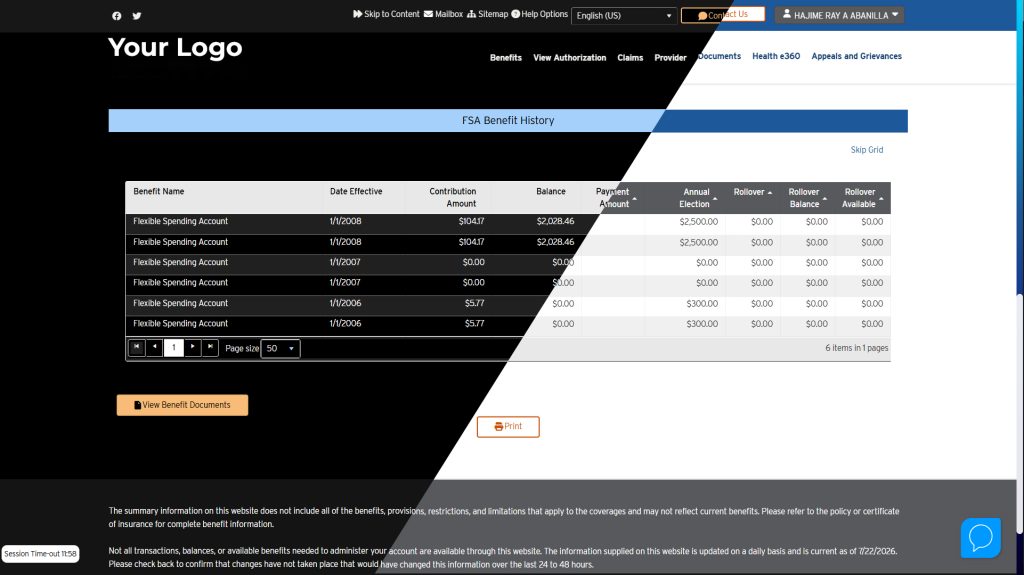
Dark Mode displays are not required by WCAG, but they do follow the spirit of WCAG. Some users don’t like a blinding white screen when trying to read a website at night. Others might prefer the white screen as it promotes high visibility and is helpful to those with visual impairments. Either way, many users have set a preference on their device about whether they’d prefer to view the web in light or dark mode. When Dark Mode is enabled, your portal will defer to the user’s device preference first and allow the user to manually toggle to varying colour modes.
Each client has a slightly different colour scheme, so our developers will have to adjust the colour modes to align with your brand on a case-by-case basis. We can also offer a high contrast colour scheme for either Light Mode or Dark Mode, for a total of 4 different colour schemes.
How to Do It
To enable Dark Mode and to adjust the dark mode colour scheme of your portal for the needs of your users, please submit a ticket in the HPS Ticketing System.
How Often to Do It
The Dark Mode updates may take a month or few to complete, but once they’re in place, it generally stays in place unless you are constantly changing the colors of your portal.
Opt Into The New Mobile Menu
About This Update
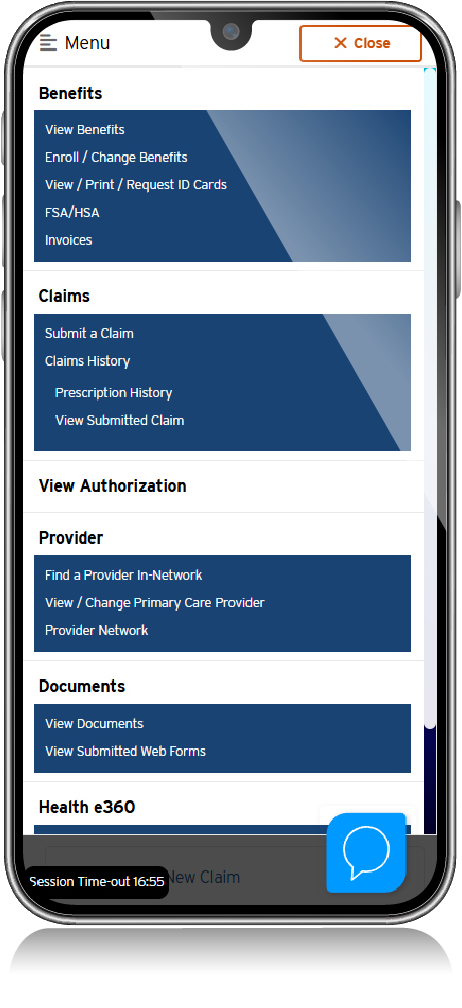
HPS has released a new mobile-friendly portal menu, which makes navigation easier for touch screen users to access your portal. Our newer clients have defaulted to our new mobile menu. Legacy clients are still using the previous menu design, as we don’t want to disrupt your user experience if that one works for you as-is.
The new menu overlays on the mobile screen, and has a close button, while the legacy menu popped out from a small button in-place.
How to Do It
If you’d like to improve your users’ experience on mobile, please submit a ticket in the HPS Ticketing System to enable the new Mobile Menu.
How Often to Do It
After you’ve implemented this update, you will not need to make this update again.
Opt into the New Menu Labels
About This Update
HPS has condensed the portal menu to simplify portal navigation. We’ve also updated the wording in our Menu Labels to be clearer and more concise to end-users and added matching icons for users with low literacy or dyslexia issues. The updated labels will reduce user confusion and reduce calls to customer service. For instance, the original “Contact Preferences” label made users think they could specify how they’d like for the insurance company to contact them. However, the new label of “Portal Notification Preferences” more accurately conveys that users can specify how they’d like to receive automated portal notifications.
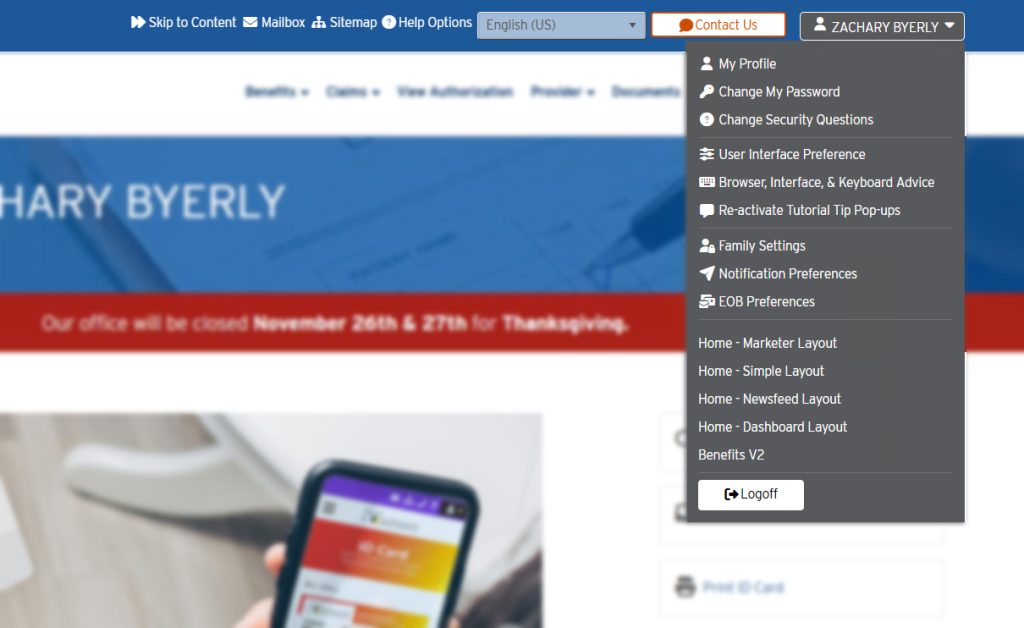
Our newer clients have defaulted to our new menu labels and label arrangements. Legacy clients are still using the original menu labels, as we don’t want to disrupt your user experience if that one works for you as-is. If you don’t see icons, or similar menu labeling as the screenshot, you are likely on the legacy format.
How to Do It
If you want to simplify and improve your members’ user experience, submit a ticket in the HPS Ticketing System.
How Often to Do It
After you’ve implemented this update, you will not need to make this update again.
Audit Your Portal’s Administrator Logins
About This Update
Admin users have the highest level of privileges in the portal. As a result, it’s important to review your admin user privileges periodically to confirm whether those levels of access are still necessary.
How to Do It
Log into your portal and review the Admin login accounts. Here’s what to look for:
- Make sure the Admin users are current company employees. If someone is no longer with your company, you can revoke that user’s permissions or simply delete the login account altogether.
- If you had temporary contractors using the portal and you’re no longer contracting with them, you may also want to downgrade their permissions or just delete their accounts entirely.
- If needed, do a similar review process for Employer login accounts, particularly for employers who have terminated.
How Often to Do It
HPS recommends doing a login account audit at least twice a year.
Remove Outdated Portal Content and Documents
About This Update
If you often post content in the Page Content Editor or Document Management tool, browse your files and delete anything that’s outdated. Outdated plan documents or marketing images in the portal open the risk for increased user confusion and subsequent calls to your Customer Service. Plus, when your portal gets backed up, outdated content and documents increase the size of your backups with erroneous files.
How to Do It
Log into your portal and go to the Page Content Editor and Document Management tools. Here’s what to look for:
Page Content Editor
- Login to your portal as an Admin.
- Go to Control Panel > Content Management > Page Content Editor.
- Within you portal Company / Group / Divisions, look around in your content for entries that may be outdated. Clicking the red X button for the entries will delete them.
Document Management
- Login to your portal as an Admin.
- Go to Documents > Manage Documents.
- Select the Document type that you want to manage.
- Browse through the various documents and delete the outdated ones. Clicking the TRASH CAN icon will delete the document.
How Often to Do It
HPS recommends removing outdated portal content and documents at least twice a year.
Conclusion
Health Portal Solutions develops the tools and portal enhancements that enable you to successfully engage your users online, but whether and how they’re used is in your hands. By making these updates, you can keep your data safe, build a targeted online experience, and drive higher portal utilization.
This article written by a human and all ideas originated from a human.